How to remove or disable Chrome extensions
Disable a Chrome extension, remove it for good, or browse with none of them running. Where the switches are, and how to find the one slowing Chrome down.
On this page
Extensions pile up. You install one to grab a color from a page, another for a coupon you used once, and a year later there are twenty of them, each a small program that loads with your browser. Disabling one takes a single click once you know where the page is. Removing one takes two. This guide covers both, plus how to work out which extension is the one causing trouble.
Open the extensions page
Click the three-dot menu at the top right of Chrome, then Extensions, then Manage extensions. Typing chrome://extensions in the address bar gets you to the same place faster.
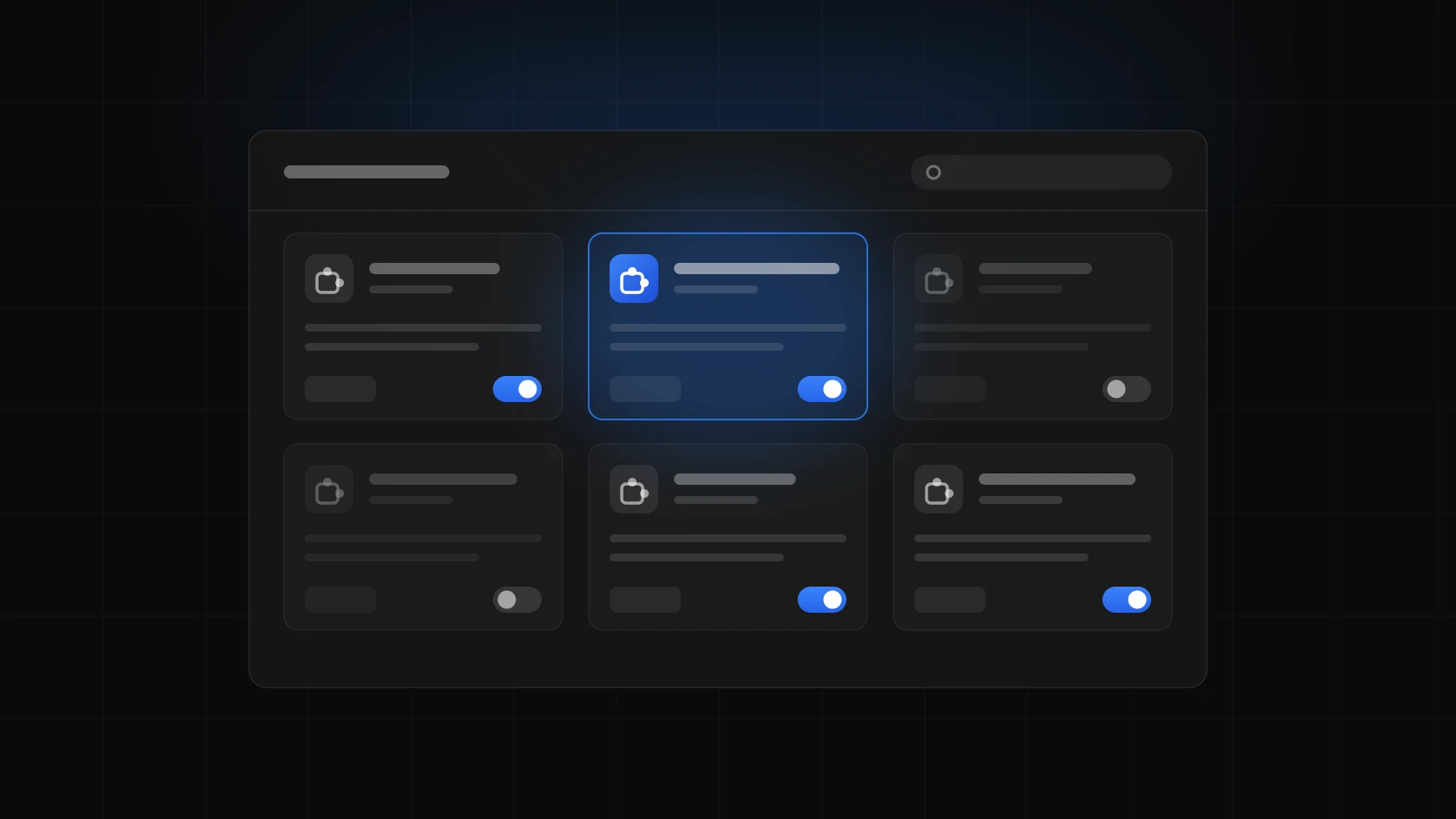
Every extension you have installed is a card on this page, with a switch in its bottom corner. That switch is most of what you need.
Disable an extension
Flip the switch on its card. The extension stops running right away, its toolbar icon disappears, and nothing else changes. It stays installed, with its settings and whatever it had saved, and flipping the switch back brings it all back.
That makes off the right first move almost every time. If you’re not sure you still need something, turn it off and see if you miss it this week. Most of the time you won’t, and then removing it is an easy call.
Remove an extension for good
On the same page, click Remove on the card and confirm. There is a shortcut for extensions with an icon in your toolbar: right-click the icon and choose Remove from Chrome.
Removing is not the same as switching off. It deletes what the extension stored in your browser, and for some extensions that is the whole point of them. OneTab’s own help page warns that uninstalling it deletes your saved tabs. So if an extension holds data you care about, export it first, or just leave it switched off.
Hide it without turning it off
A crowded toolbar is a separate problem from too many extensions running. Click the puzzle-piece icon to see all of them, and use the pin next to each one to choose which icons stay in the toolbar. You can also right-click an icon and choose Unpin.
An unpinned extension is still on and still running. Unpinning only tidies the toolbar.
Limit what an extension can reach
Sometimes you want to keep an extension but trust it less. Click Details on its card. From there you can change its site access so it only runs on sites you name, or only when you click it, and you can decide whether it is allowed in Incognito windows.
This is a good middle ground for an extension you use on one site. A price tracker has no business reading your bank’s pages, and the site access setting is how you tell it so.
Browse with none of them running
Chrome’s extensions page has no master switch. The quickest way to get a window with no extensions is to open an Incognito window, with Ctrl+Shift+N (Cmd+Shift+N on a Mac). Extensions stay out of Incognito unless you allowed them one by one under Details.
That turns Incognito into a handy test. If a page that misbehaves in a normal window works there, an extension is very likely the cause.
Find the one causing trouble
Chrome’s task manager shows what each extension costs you. Press Shift+Esc on Windows or Linux, or open the three-dot menu, then More tools, then Task manager. Rows that start with “Extension” are your extensions, and you can sort the list by memory.
When the problem is a broken page and not a slow browser, the task manager won’t tell you much. Switch off half your extensions and reload the page. If the problem is gone, the culprit is in the half you turned off. If it isn’t, it’s in the other half. Keep halving, and twenty extensions take about five rounds.
We went through the other ways to get memory back in how to reduce Chrome memory usage.
When Chrome disables one for you
Now and then an extension is off and you didn’t do it. Chrome disables extensions that don’t meet its newer requirements. Its help page says you can switch one back on, though only for a limited time. If the extension matters to you, look for an updated version or a replacement before that window closes.
Two other things you might see on a card. Repair appears when an extension’s files are damaged, and clicking it fixes the install. And with Enhanced Safe Browsing on, Chrome may warn you that an extension is not trusted before you add it.
Switching extensions from the keyboard
All of the above involves a trip to the extensions page. If you toggle extensions often, say an ad blocker that breaks one checkout page or a screen recorder you only want on during calls, that trip gets old.
This is one of the small jobs we built into UtilEngine, our launcher extension for Chrome. Press your shortcut on any page, type “ext”, and you get the list of your installed extensions with their versions. Enter switches the highlighted one off or back on. The actions menu on each row opens its options page or its store page, and can uninstall it. It also marks an extension that is waiting on new permissions, which is otherwise easy to miss.
It won’t change an extension your company manages, and it doesn’t list itself, so you can’t switch off the launcher from inside the launcher. UtilEngine is paid software ($49 once), and you would not buy it for this alone. It makes sense if you also want the other things one launcher can stand in for, like a session manager, a text expander and a calculator. Fewer extensions is, after all, the theme here.
In Edge and Brave
Both are built on the same engine as Chrome and work the same way. Edge keeps its page at edge://extensions and Brave at brave://extensions, each with the same switch and the same Remove button on every card.
Common questions
Does turning off an extension delete its data?
No. A switched-off extension keeps its settings and saved data, and it picks up where it left off when you turn it back on. Removing it is what deletes them.
Do disabled extensions still slow Chrome down?
No. An extension that is off is not loaded, so it has no row in the task manager and no access to your pages.
How do I disable all Chrome extensions at once?
The extensions page has no single switch for it. Open an Incognito window to browse without them, since extensions don’t run there unless you allowed them. To turn everything off in normal windows, you flip each switch in turn.
Why did Chrome disable my extension?
Usually because it doesn’t meet Chrome’s current requirements for extensions. You can turn it back on for a limited time. After that you need an updated version from its developer, or a different extension.
Can I stop an extension from running on one site?
Yes. Open Details on its card and change its site access. You can limit it to sites you list, or make it wait until you click its icon.
How do I remove an extension that has no Remove button?
If the card says the extension is managed by your organization, your administrator installed it and only they can remove it. On a personal computer, an extension you can’t remove is worth a scan with security software.